
How Do You Remove Personal Data Before Selling Your Vehicle?
Table of Contents
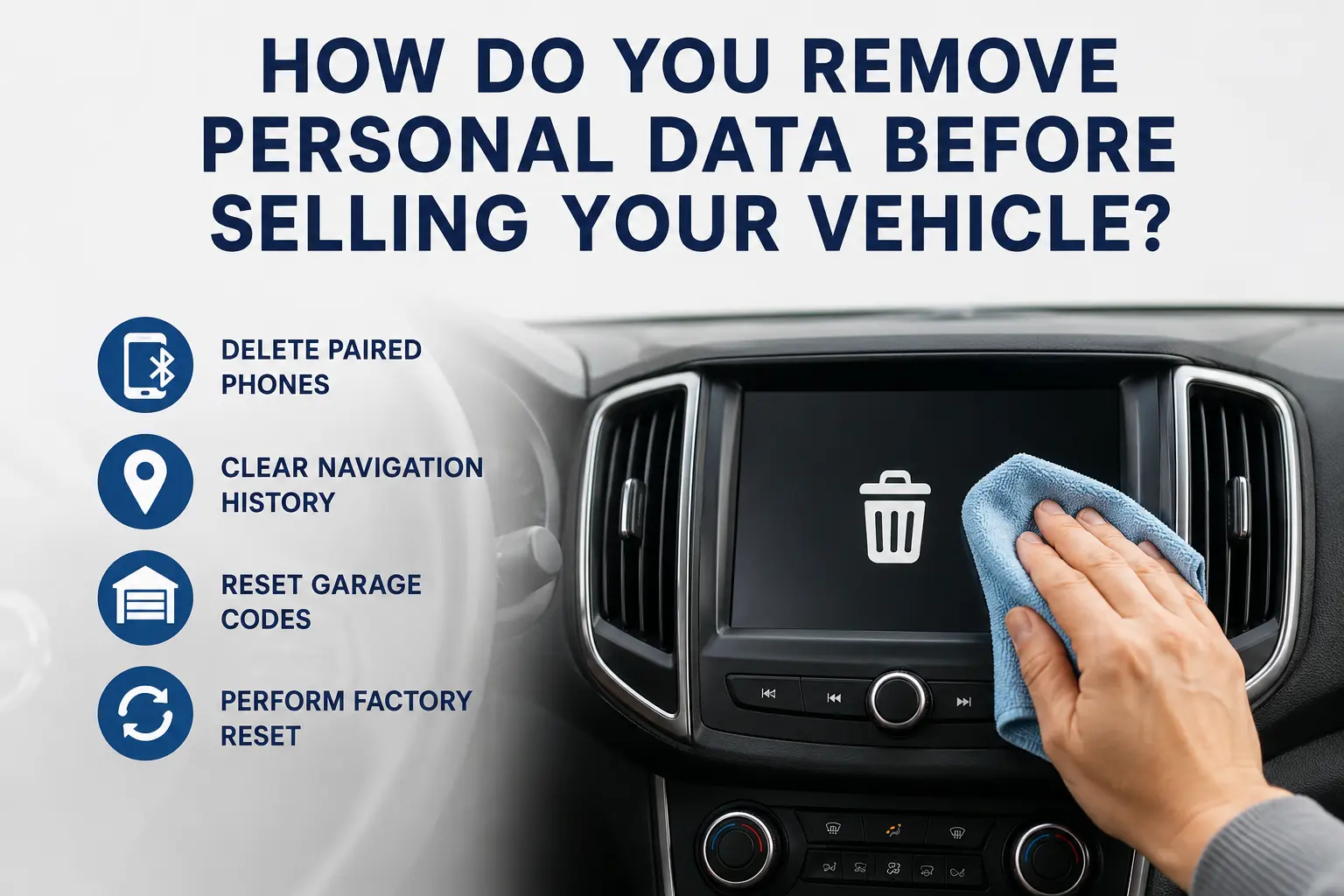
How Do You Remove Personal Data Before Selling Your Vehicle?
Selling or trading in your vehicle in East Tennessee is an exciting milestone, but there is one critical step many drivers forget: removing personal data. Modern vehicles are essentially smartphones on wheels, running sophisticated software that stores a surprising amount of private information. Every time you connect your phone to mirror navigation, save garage door codes, or sync your phonebook while commuting along US-11E or West Morris Boulevard, your vehicle stores sensitive personal data in its onboard memory.
Before you sell, trade, or donate your vehicle, take a few minutes to wipe that information clean. Deleting your digital footprint protects your privacy, prevents identity theft, helps the next owner start fresh, and makes the handoff completely secure. In this comprehensive guide, we cover the hidden privacy risks of vehicle ownership, a step-by-step master data wiping checklist, brand-by-brand factory reset instructions (Ford, Jeep/RAM/Dodge, Chevy/GMC, Toyota, Honda, Nissan), Apple CarPlay & Android Auto removal, telematics cancellation, 10 frequently asked questions, and local trade-in options in Morristown and Jefferson City, TN.
Top 3 Privacy Takeaways Before Selling Your Car
- Delete Phone Pairings & Communication Logs: Delete all paired phones, Bluetooth contacts, call logs, text messages, and app connections before you hand over the keys.
- Clear Navigation Data & Garage Door Codes: Clear saved navigation data—including home, work, recent destinations, favorite places, and route history—and manually clear HomeLink garage door buttons.
- Reset Profiles, Subscriptions & Paperwork: Reset personal driver profiles, sign out of connected apps (FordPass, Uconnect, OnStar), remove physical toll passes, and black out home addresses on paper service receipts.
Why Should You Remove Personal Data From Your Car?
You should remove personal data from your car because modern infotainment systems store information synced from your phone, native GPS navigation, connected mobile apps, and customized vehicle settings.
When you pair your smartphone to a vehicle, the system may sync contacts, favorites, call history, streaming apps, voice commands, and message notifications. If your vehicle has built-in navigation, it also saves your home address, workplace, favorite locations, and recent trips. That information may not seem like a major concern until someone else owns the vehicle. A buyer or test driver does not need access to where you live, where you work, who you call, or which garage door your vehicle can open.
Think of your vehicle like a smartphone or laptop. Before passing it to a new owner, you want to sign out, delete personal information, and reset it properly.
What Personal Data Can a Vehicle Store?
The exact data stored depends on the year, make, model, trim level, and infotainment software. Newer vehicles store far more information because they feature advanced connected services. Below is a breakdown of data points saved in vehicle memory systems:
| Category | Stored Data Types | Privacy Exposure Risk |
|---|---|---|
| Phone & Bluetooth | Contact lists, call history, text message previews, voicemail shortcuts. | High. Exposes personal and business contacts to future drivers. |
| GPS Navigation | Home address, work address, saved places, recent destinations, favorite routes. | High. Reveals daily routines, family home locations, and frequent stops. |
| Garage & Gates | HomeLink signals, gate codes, universal remote radio frequencies. | Severe. Can allow unauthorized physical access to your home or garage. |
| Connected Accounts | Wi-Fi networks, Spotify, Amazon Alexa, SiriusXM, app login tokens. | Moderate. May allow unauthorized streaming or data usage on your account. |
| Driver Profiles | Seat positions, climate settings, linked key fobs, cloud profile preferences. | Moderate. Retains linked personal identification and user preferences. |
Visual Flowchart: Step-by-Step Vehicle Data Removal Checklist
Follow this structured step-by-step roadmap to perform a complete digital cleanup before trading in or selling your vehicle:
Master Vehicle Data Erasure Roadmap
Delete All Paired Phones, Contacts & Messages
Navigate to Bluetooth settings. Delete every saved phone, call history, contact list, and text message archive. Turn the vehicle off and back on to confirm deletion.
Clear Navigation History, Home & Work Addresses
Access native GPS settings. Clear recent searches, destination history, saved favorites, and explicitly remove programmed "Home" and "Work" shortcuts.
Reset Garage Door Openers (HomeLink Buttons)
Press and hold the two outer HomeLink buttons on your rearview mirror or overhead console for 20 seconds until the indicator light flashes continuously.
Delete Driver Profiles & Sign Out of Apps
Delete all saved driver profiles, sign out of in-car streaming apps, forget Wi-Fi networks, and remove the vehicle VIN from your phone app (FordPass, Uconnect, etc.).
Execute System Master Reset & Remove Physical Items
Perform a factory master reset in system settings. Remove USB drives, MicroSD cards, toll passes, dashcams, and private financial papers from the glovebox.
Brand-by-Brand Factory Reset Instructions for Popular Systems
Infotainment menu layouts vary by manufacturer software. Follow these step-by-step menu navigation paths to execute a complete factory master reset:
| Automotive Brand | Infotainment System | Step-by-Step Menu Reset Path |
|---|---|---|
| Ford / Lincoln | SYNC 3 & SYNC 4 / Ford Digital Experience | Go to Settings > General > Scroll down to Master Reset > Confirm reset. (Restores factory default settings). |
| Jeep / RAM / Dodge / Chrysler | Uconnect 4 & Uconnect 5 | Press Settings gear icon > Select System Information or Reset Options > Tap Restore Factory Settings > Confirm. |
| Chevrolet / GMC / Buick / Cadillac | Chevrolet Infotainment 3 / GMC Premium System | Tap Settings on touchscreen > Select System tab > Tap Reset Options > Select Erase All Settings & Personal Data. |
| Toyota / Lexus | Toyota Audio Multimedia System | Press Setup gear icon > Select General > Scroll to Delete Personal Data > Tap Delete and confirm. |
| Honda / Acura | Display Audio / HondaLink | Go to Home > Settings > System > Scroll down to Factory Data Reset > Confirm reset. |
| Nissan / Infiniti | NissanConnect | Press Settings menu button > Select System / Other > Tap Reset All Settings / Delete All Personal Data. |
Managing Apple CarPlay, Android Auto, Telematics, and Subscriptions
Performing a factory touchscreen reset clears the vehicle's onboard storage, but you must also address external smartphone profiles, connected apps, and telematics services to complete your privacy audit:
1. Removing Apple CarPlay & Android Auto Profiles on Your Phone
Removing your phone from the dashboard device list is only half the process. Your smartphone also retains authorization tokens for the vehicle. Open your phone's settings menu:
- Apple CarPlay: Open iOS
Settings > General > CarPlay, select the vehicle name from the list, and tap "Forget This Car". - Android Auto: Open Android
Settings > Connected Devices > Connection Preferences > Android Auto, select "Previously Connected Cars", tap the three-dot menu, and delete the vehicle profile.
2. Unlinking Telematics Apps & Canceling Subscriptions
Contact service providers directly to cancel or transfer services linked to your Vehicle Identification Number (VIN):
- Connected Mobile Apps: Open your smartphone app (e.g., FordPass, Chrysler Uconnect, MyChevrolet, Toyota App). Go to vehicle account settings and tap "Remove Vehicle". This instantly revokes remote door unlocking, remote engine start, and live GPS tracking capabilities.
- OnStar & Vehicle Telematics: Call OnStar (1-888-466-7827) or press the blue button to transfer telematics services to your new car or cancel billing.
- In-Car Wi-Fi Hotspots & SiriusXM: Log into your cellular provider account (AT&T or Verizon) to disconnect the in-car Wi-Fi data plan. Contact SiriusXM to transfer your remaining subscription balance to your replacement vehicle.
3. Redacting Paper Maintenance Records & Physical Papers
Leaving helpful service records in the glovebox builds buyer trust because it proves oil changes, repairs, and tire replacements were completed on schedule. Read our guide on what to know before buying a used car in Morristown.
However, before handing paperwork over, inspect every receipt. Use a heavy black marker to redact your home address, phone number, email address, credit card numbers, and signature. A clean folder of basic mechanical history is helpful; a glovebox filled with private financial paperwork is a privacy liability.
Why Dealership Trade-Ins Are Safer Than Private Sales for Data Privacy
When you sell a vehicle through a private sale (such as meeting an unknown buyer in a parking lot or listing on social media), you rely entirely on yourself to clear all stored personal information. If you miss a step, the new owner gains access to your home navigation coordinates, saved contacts, and programmed garage door frequencies.
When you trade in your vehicle at a professional dealership like Farris Motor Company, our reconditioning technicians perform a thorough safety and privacy inspection. We inspect physical compartments, remove old registration slips, and execute standard factory master resets during our intake process. Calculate your vehicle's live market value in seconds using our instant online trade-in appraisal tool.
Frequently Asked Questions
1. How do I remove my personal information from my car before selling it?
A: Remove personal data by deleting paired Bluetooth phones, clearing contacts and call logs, erasing navigation history, removing saved home/work addresses, resetting garage door buttons, signing out of apps, and performing a factory master reset in system settings. Also, clear physical USBs, SD cards, and glovebox papers.
2. Does a factory reset delete everything from a car?
A: A factory reset deletes most stored settings, but it may not automatically clear physical HomeLink garage door buttons or unlink connected mobile apps like FordPass. Manually delete sensitive items first, then perform the factory reset as the final step.
3. Should I delete my home address from my car navigation system?
A: Yes. Always delete your home and work addresses before selling or trading your vehicle. Also, clear recent destinations, favorite places, and saved route history that could reveal your daily schedule.
4. Can a car store my text messages and contacts?
A: Yes. Many vehicles sync and store downloaded phonebooks, call logs, and text message notifications after you pair your phone. Delete your phone from the device manager menu, then check communication settings to confirm the records are gone.
5. Do I need to reset my garage door opener before selling my car?
A: Yes! Reset any built-in garage door or gate opener before handing over your keys. If the code remains programmed, the next owner could access your garage, gated community, or storage area.
6. Should I remove my vehicle from its mobile app?
A: Yes. Remove the vehicle VIN from your smartphone app (FordPass, Uconnect, MyChevrolet, etc.) before selling. This stops remote door unlocking, engine start capabilities, and vehicle location tracking.
7. Does disconnecting the car battery delete personal stored data?
A: No. Disconnecting the 12-volt battery clears short-term engine memory codes, but personal navigation history, Bluetooth profiles, and radio presets are saved in non-volatile flash memory and persist after reconnecting the battery.
8. What if I cannot figure out the reset process on my car screen?
A: Check your owner’s manual under "Settings" or "System", or ask a dealership team member for assistance. If a full factory reset is unavailable, manually delete paired phones, addresses, and garage codes.
9. Should I remove physical toll passes and parking permits?
A: Yes. Remove physical EZ-Pass or parking passes attached to your windshield or visor to prevent ongoing toll charges hit to your account after the sale.
10. How can I get an accurate value for my trade-in vehicle in East Tennessee?
A: You can receive an instant cash offer or trade-in valuation by entering your vehicle's VIN or license plate into our online trade-in appraisal tool.
Trade In Your Vehicle Safely at Farris Motor Company
At Farris Motor Company, we make upgrading your vehicle simple, transparent, and secure. Whether you are trading in a car, truck, or SUV in Morristown, Jefferson City, or surrounding Hamblen and Jefferson counties, our team ensures a seamless experience from valuation to final paperwork.
Explore your options online or visit our showroom today: